env_overlay

An env_overlay puts a picture or a color on the screens of players, under the HUD. It can show a hint picture, a
logo, a color over the whole screen, a flash or an animated sprite.
Only alive players see overlays, and the HUD, the chat and the menus are drawn over them.
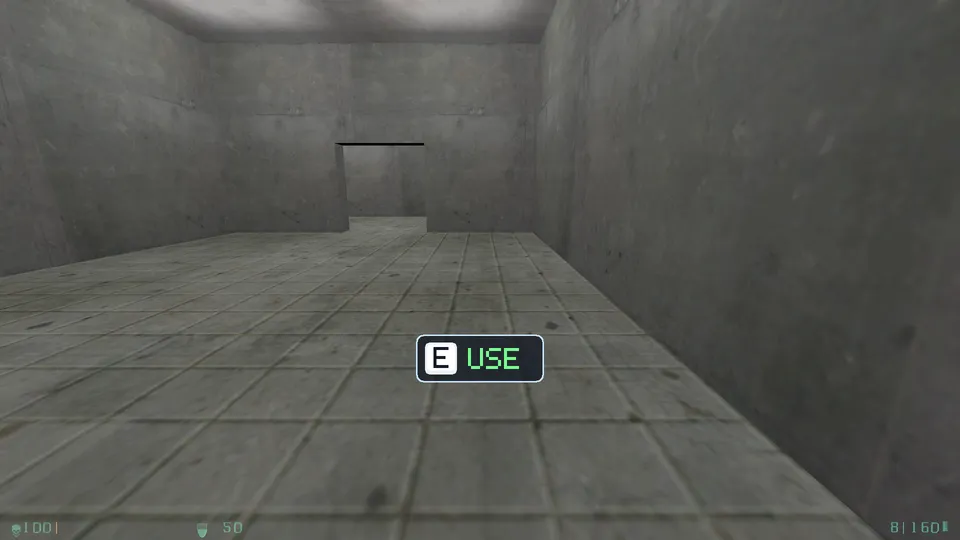
A hint picture in the lower middle of the screen
Attributes
targetnameTriggering the entity shows or hides the overlay. See Turning it on and off and Common keys for more details.
spriteSets the picture, a sprite, animated or not, or a 24-bit or 32-bit .tga file, such as sprites/hint.spr or gfx/hint.tga. A sprite counts toward the models of the map, and players download a .tga with the map. You can't change the picture while the map runs.
If you leave this key empty, the overlay is a plain color, which needs Full Screen. Without Full Screen, it shows nothing, and with developer 1 set in the console, the console reports an error.
xSets where the picture is across the screen, from 0 for the left edge up to 1 for the right edge, like on a game_text, and -1 centers it. A negative value puts the right edge of the picture that far from the right edge of the screen.
-1ySets where the picture is down the screen, from 0 for the top up to 1 for the bottom, and -1 centers it. A negative value puts the bottom edge of the picture that far from the bottom of the screen.
-1scaleSets the size of the picture, where 1 is its own size in pixels, 2 doubles it and 0.5 halves it. The picture grows with the HUD (hud_scale), so it keeps its size next to the HUD. The entity ignores it with Full Screen.
If you leave this key empty or set 0, it is 1.
1rendermodeSets how the picture is drawn over the view.
- Normal (0) - The picture is blended with its own transparency
- Additive (5) - The picture adds light to the view, so black is see-through
Normal (0)renderamtSets how opaque the picture is, from 1 for nearly invisible up to 255 for opaque, and with Additive, how bright it is.
If you leave this key empty or set 0, it is 255.
255rendercolorTints the picture, where 255 255 255 keeps its own colors, and sets the color of a plain color overlay.
255 255 255framerateSets how many frames per second an animated sprite plays, and 0 shows only its first frame.
10fadeinSets how many seconds the overlay takes to fade in when it is shown, up to 655, and 0 shows it at once.
0.5holdtimeSets how many seconds the overlay stays after it has faded in, before it fades out. With 0, it stays until you turn it off, and with Loop, it is the time between the fades.
0fadeoutSets how many seconds the overlay takes to fade out, also when you turn it off.
0.5channelSets the channel of the overlay. A player sees one overlay on each channel, so a new overlay replaces the one on its channel, and channel 8 is drawn on top.
- Channel 1 (1)
- Channel 2 (2)
- Channel 3 (3)
- Channel 4 (4)
- Channel 5 (5)
- Channel 6 (6)
- Channel 7 (7)
- Channel 8 (8)
Channel 1 (1)Flags
1All PlayersEvery alive player gets the overlay. Without this flag, only the player who started the chain of triggers gets it, and only if they are alive, so a trigger that no player started, such as a timer, shows nothing
2Full ScreenThe picture covers the whole screen, and the entity ignores X, Y and Scale. A plain color overlay needs this flag
4Start OnThe overlay is on from the start of the map, for every alive player, and each later trigger also shows it to every player, as with All Players
8LoopThe overlay fades in, holds, fades out and starts again, until you turn it off. Hold Time is then the time between the fades
Turning it on and off
An overlay that lasts, because its Hold Time is 0 or it has Loop, turns on at one trigger and off at the next, and it obeys the use types On and Off. A timed overlay starts again from the beginning at every trigger and goes away by itself, but a trigger with the use type Off turns it off early. When an overlay turns off, it fades out over its Fade Out Time, and when a KillTarget removes the entity, its overlay fades out on every screen.
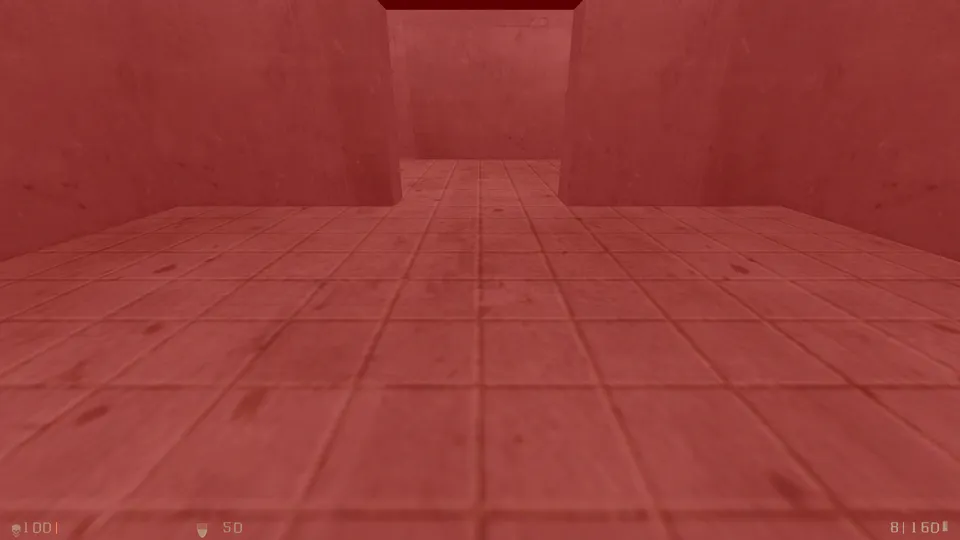
A red color over the whole screen
A player who dies or becomes a spectator loses all their overlays at once. When they respawn, they get the overlays that are on for every player.
Notes
- Pictures need the OpenGL renderer, and the software renderer only draws plain color overlays
- If the picture path is bad, the entity does nothing, and with
developer 1set in the console, the server console reports it when the map starts - If
trigger_changevalueortrigger_copyvaluechanges a key while the overlay is on a player's screen, that player sees the change at once, and a timed overlay ends at its new time. The picture and Channel can't change while the map runs. See Changing keys
See also
env_fade- the engine's screen fade, which is drawn over the HUDgame_text- shows a text on the screen
Changes since 1.38
env_overlayis new in SBO 2.1.0